Slow PC

Is your PC not listening to your commands, Slow PC Support has all the solutions.

Optimization Tools

Is your PC slow?, We have the right tools to help you make your life easy.

TechSupp247

Simple one stop answers to all your technical Questions.

Speed Up Your Computer

Total speed is possible.

TechSupp247

Simple one stop answers to all your technical Questions.

Showing posts with label speed up windows xp. Show all posts

Tuesday, January 4, 2011

Alerter

Alerter


What is Alerter?


The Alerter service is a Microsoft Windows service which is used to send administrative alerts. It alerts users about security, access, and user session problems. Alert messages are sent from a server to a client computer, and the Messenger service must be running on the client computer for the user to receive alert messages.

Free Registry Fix

Free Registry Fix


Free Registry Fix will safely clean and repair Windows registry problems with a few simple clicks and enable you to enjoy a cleaner and more efficient PC.

Thursday, December 30, 2010

Speed Up PC and Network Performance

SpeedOptimizer


SpeedOptimizer is an all-in-one PC optimization tool that will boost your PC's performance and allow smooth and trouble-free operation. SpeedOptimizer 3.0 includes network optimization,registry cleaner, file sweeper, Startup manager and many more.

Increase your PC files copy speed with SuperCopier

SuperCopier


SuperCopier manages transfer of large quantities of folders and files, or huge-sized files in a much more reliable and efficient way than that of the standard Windows Explorer. You can run the program from its icon on the system or simply copy and paste files and folders in the usual way. SuperCopier is embedded in Windows Explorer and will take care of the task.

Wednesday, December 29, 2010

Speed Up PC Performance - eBoostr


                   Accessing data from the RAM is blazingly faster than accessing data from your Hard Disk. These days most of us have a USB flash Drive or Pendrive and the amount of RAM installed on most recent computers are 1 GB or more than that since the prices of RAM is very cheap now a days. So we get more value for money, since we get more performance for less money. eBoostr is a great utility that takes advantage of this. It caches the commonly used system files and application files and makes it possible to launch your commonly used programs in the blink of an eye. You may ask doesn’t this is similar to the Ready Boost feature in Windows 7. The answer is NO. In Windows 7 you can use only the USB flash Drives or pendrives for accelerating the Windows and Applications. But what makes eBoostr far more superior than Windows 7 is that, you can use your System RAM too apart from the Pendrives or USB Flash drives. This makes things real fast.

Saturday, December 25, 2010

Auslogics BoostSpeed 5

Auslogics BoostSpeed 5


Auslogics BoostSpeed is an effective all-encompassing utility suite, combining some of Auslogics' popular freeware titles such as Disk Defrag and Registry Defrag with services that they don't offer elsewhere. There's an uninstall manager, a startup manager for boot cycle customizations, RAM and browser optimizers, file shredder, DirectX diagnostic, Windows tweak manager, and several mini apps to manage Windows settings. It also comes with a rescue center that can back up any settings before you change them.


Features of Auslogics BoostSpeed:

System Scan, File Recovery
Disk Doctor, Disk Explorer ,Disk Defrag, Disk Cleaner, Disk Wiper
Registry Defrag, Registry Cleaner

Internet Optimizer
Tweak Manager
Track Eraser
Duplicate File Finder, File Shredder
Startup manager, Uninstall Manager, Service Manager
Rescue Center


Operating System Supported:

Windows XP
Windows Vista
Windows 7

Speed Up Windows XP - Remove Fonts which you dont require

Zap extra fonts fonts installed on the computer. Fonts, especially TrueType fonts, use quite a bit of system resources. The more fonts they have, the more lethargic the system will become. Anything over 300 fonts in the system will slow down load times- especially graphic apps. For optimal performance, trim your fonts down to just those that you need to use on a daily basis and fonts that applications may require.

Speedup Folder Browsing in Windows XP

Speedup Folder Browsing in Windows XP               

                  You may have noticed that everytime you open My computer to browse folders that there is a slight delay. This is because Windows XP automatically searches for network files and printers everytime you open Windows Explorer.

Friday, December 24, 2010

Adjust Graphics Settings for Peek Performance of Games - For Intel Users


A variety of graphics settings are available in PC games that can improve graphics quality or increase game performance. This gives games the ability to take advantage of the latest high performance computers, while still allowing acceptable performance for slower computers. Some common settings are described below.

When enabling or disabling different features, there is usually a tradeoff between graphics quality and game performance.Try enabling a feature or increasing the detail level, then check the quality and performance that results to find the best balance for that particular game.

Tips to Increase Games Performance in Windows XP


How does Windows affect my gaming performance?

The Windows operating system is not meant for one single purpose, compared to a gaming console. It is built to deal with all kinds of tasks, such as surfing the Web, editing photos, running office applications, connecting to social networks, and much, much more. All of these tasks need dozens of background processes and services running at the same time which take up processor and memory resources. So, unlike a console, your hardware is not able to solely focus on gaming. To increase speed for gaming purposes, it is vital that you reduce all of the unnecessary background activity on your system.

Speed Up Game Performance - Game XP

Game XP


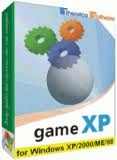
Game XP is intended to optimize the performance of your computer for gaming needs. It tweaks and modifies various XP settings (cache settings, CPU priority etc.) and optionally disables or stops several Windows services that are usually not needed. The program does not require any installation, and does not need to be running at all times. Game XP extends your operating system's capabilities and makes Windows faster and comfortable for maximum gaming experience.

Wednesday, December 22, 2010

Windows Control Panel Applet Shortcuts

The "Run" line in the Start menu can be used to speed up access to a whole variety of functions. We can Open Control Panel Applets directly from "Run" instead of going into Control Panel.

If you want to make it a bit more easier to use the control panel applets, here are some handy shortcut keys for windows control panel applets.

Expand Control Panel in Start Menu to save time

The Control Panel centralises access to Windows' multitudinous settings. From the Control Panel you can adjust and tweak Windows' appearance, performance, network connections, hardware settings and a whole lot more.

Tuesday, December 21, 2010

Secure Your PC for better Performance

Techniques To Secure Your PC System for better Performance 


In the present day, much more individuals are operating their desktops as an aid for all of the things from messaging to web banking plus investing to browsing shopping stores. Just as we perform these various things on a more recurring basis, we expose our private data up to potential hackers, attackers and also crackers. Whilst a couple might be seeking to obtain your delicate data as well as identity for resale, others purely just would like to utilize your personal computer as a platform from which to strike other unknowing computers. Beneath are a couple of effortless, cost-effective steps you can use to make your PC more secure.

1. Constantly compose backups of your important data as well as keep it within a protected location separate from your personal computer.

Importance of Registry Cleaner

Why Registry Cleaner Is Important?


Do you know what registry cleaner is? Are you aware of registry cleaner? Microsoft Windows operating system has specially designed it that helps in removing the unwanted items form the Windows registry. There always have been various controversies regarding the advantages and disadvantages of registry cleaner.

Thursday, December 9, 2010

Speed Up Your PC By Disabling XP Splash Screen

Speed Up Windows XP

Disable XP Splash Screen:


Here’s a method that will speed up the overall boot process of your PC by disabling the XP splash screen. Doing this will hide away any boot-up messages and shows the list of drivers loading at startup.


Wednesday, December 8, 2010

Speed Up PC Performance - BIOS Optimization

What is the BIOS?


The BIOS (Basic Input/Output System) is a small memory chip located on the motherboard containing data that define the system parameters. As some BIOS data are written in a ROM, it is not possible to change them, however, certain parameters are accessible from the BIOS setup, which can be enabled right after start-up, usually by pressing the <F1> or <DEL> key (it may be another key, in which case at start-up you will see a message like "HIT 'DEL' TO ENTER SETUP"). BIOS setup is a sort of "BIOS configuration panel".


Tuesday, December 7, 2010

Speed Up Windows XP

Speed Up Menu Display

Microsoft Windows XP uses many visual effects to provide a rich, friendly interface. One of these settings allows menus to fade into view when you open them. This visual effect is so smooth that you may never have noticed it; however, the effect does cause menus to take a little longer to appear.

On a fast computer, this shouldn't be an issue. But on a computer that isn’t responding as quickly as you'd like, you can make menus display faster.


Friday, November 26, 2010

Speed Up Windows XP - Enable DMA on all Drives

                                   Windows XP has a hard drive feature call Direct Memory Access, or DMA. This allows data from your drives to transfer directly from the device into memory without passing first through the CPU, thereby reducing the workload on your processor. To speed up your computer, you can make sure DMA is enabled for all of your drives (including CD/DVD drives).


Thursday, November 25, 2010

Windows XP - Keyboard Shortcuts - Part III


                           Most pc users are accustomed to using their mouse for most actions they do on the computer. However, there is a much more powerful and easier way to navigate; this is the Windows keyboard shortcuts. Most of us are aware of the copy Ctrl+C, paste Ctrl+V and Ctrl+Alt+Delete (task manager), but there are many more. Knowing quite a few of these can be very helpful in the event your mouse has stopped working.


Search This Blog

Followers

Categories

Twitter Delicious Facebook Digg Stumbleupon Favorites More